
How to Install NetGo TV / CatchOn TV on Firestick
More viewers are moving away from traditional cable and choosing IPTV services that work directly on devices like the Firestick. One popular option many users search for is NetGo TV.
In this blog will get you through how to get NetGo TV on your Firestick on the Amazon App Store, the entire setup process, and preparation so you can get started without confusion.
What Is NetGo TV?
NetGo TV is an IPTV service that compatible with CatchON TV that delivers live TV channels, movies, series, sports, and on-demand content through an internet connection.
Instead of using satellite or cable wiring, NetGo TV streams content directly to compatible devices turning into a full entertainment hub.
How To Install IPTV On Firestick
Step 1: First of all you’ll have to get an app called Downloader, you can actually get it for FREE. From the Firestick home screen, use the search function and look for Downloader on the official Amazon App Store. The Downloader app is essential because it allows Firestick users to install an IPTV.
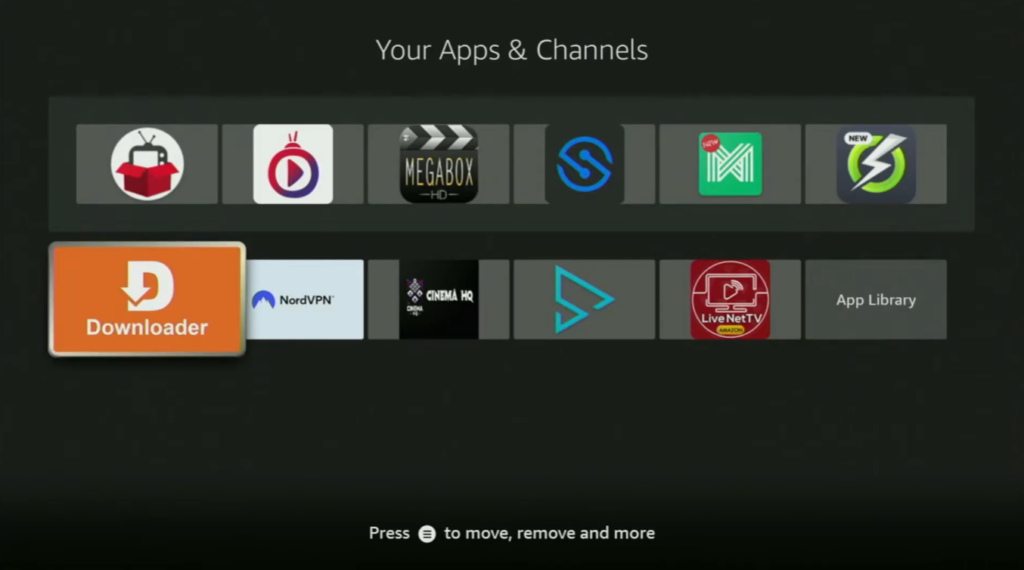
Remember, in order to set up the Downloader, you’ll have to go to the settings on your Firestick by clicking on a button with the gear icon, then scroll down and go to My Fire TV. Open it and from there you’ll have to turn on the Developer options on your device.

Click Developer options and make sure to turn on the ADB debugging then go to install on apps. Locate Downloader and turn the option On. Now it will allow you to install other applications from the internet which are available in the official Amazon app store by default.

Step 2: Open Downloader and for the left side Menu it’s very important that you click on Home, and then in the search bar we’ll need to enter a code which is going to be 28907 and click on Go. (I put example)

Step 3: When the website is opened, just scroll down a bit until you find that list of categories. From there all you have to do is click on the IPTV Players and the list of apps has opened for you.

Step 4: You will see NetGo TV. Click on it and an ad might pop up for you, just click close to close down the ad. When the new web page is going to load for us, we need to scroll it down until you find the download button. If the download button doesn’t start you can always use the Backup Download link.
When the download starts usually it doesn’t take long depending on your internet connection and waiting until NetGo TV gets installed to your Firestick . After the install finished, don’t click on open yet, instead press on Done because this way we’ll have an option to delete the installation files as we don’t need them anymore on your device.
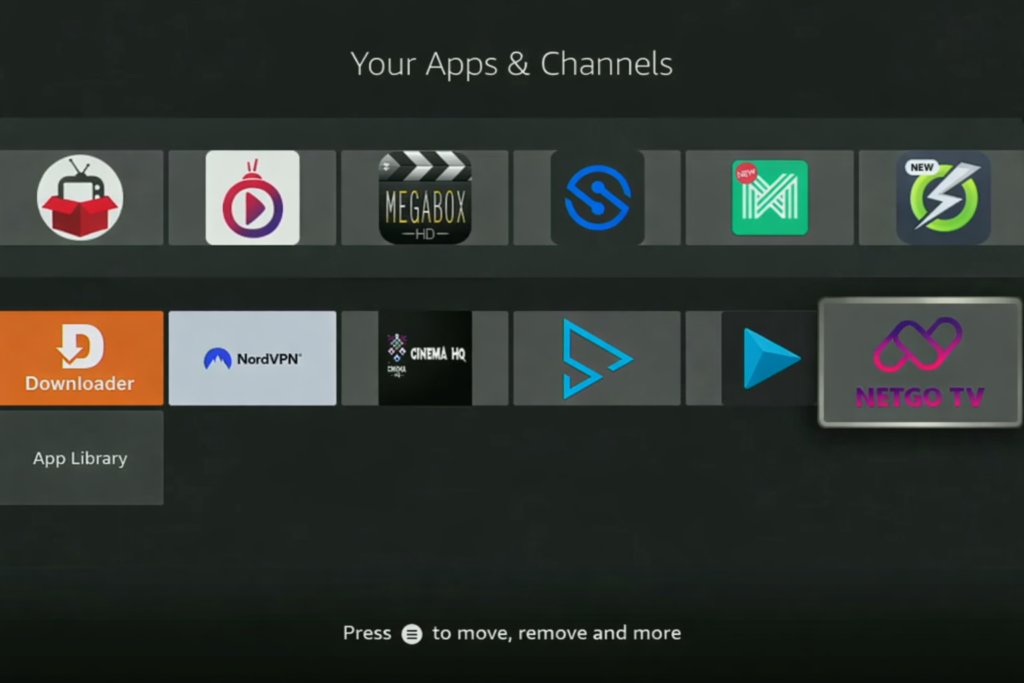
Step 5: Finally go back to the list of apps on your Fire TV, and on the bottom you’ll find the installed NetGo TV.
Now click the options on the button on your remote and press on move to front, this way NetGo TV is always going to be at the very top of your application list.
Installing IPTV on Firestick doesn’t have to be complicated. By following the steps above, you can easily set up a reliable IPTV player like NetGo TV using the Downloader app and start streaming in just a few minutes. Once installed, Firestick becomes a powerful all-in-one entertainment device, giving you quick access to live TV, movies, sports, and on-demand content without the need for traditional cable.
Watch the video tutorial below
Check out our YouTube channel for more IPTV tutorials. Don’t forget to hit Like and Subscribe!
Get started with a 3-day FREE Trial for NetGo TV today, or contact us for more information.
Download CatchON TV / NetGo TV apps:
